How to find a numerical derivative and definite integral on a Casio ClassWiz or fx-CG50
On the fx-991EX: MENU → 1 (Calculate) → ∫▭.On the fx-991CW: CATALOG → Function Analysis → Integration(∫).
The gradient at a point with d/dx and a definite integral with ∫dx, plus areas between curves. Exact keystrokes for the Casio ClassWiz first (the fx-991EX and fx-991CW have different menus, so each has its own tab), then the graphic calculators, a worked example you can check your answers against, the mistakes that cost marks, and the same thing in Desmos.
When you need it
Checking a definite integral you have done by hand, the trapezium rule answer against the true value, and the gradient at a point. Questions that say "show that" or "use calculus" need the algebra: the calculator only confirms.
Practise it: Differentiation · Integration · Numerical methods.
Keystrokes on your calculator
Pick your calculator: the page remembers it next time.
Numerical derivative and integral on the Casio fx-991EX ClassWiz
Written for the fixed ROM (these models take no OS updates). Casio fx-991EX ClassWiz: scientific (no graphs).

Watch the key presses on the fx-991EX9 presses, one at a time
The walkthrough needs JavaScript. The same key presses are in the numbered steps below.
- MENU 1 (Calculate).
- Integral: press ∫▭ (the integral key), type X² e^(−X) (e^ is SHIFT ln), then the limits 0 and 2 with the arrow keys, =.
- Derivative: SHIFT ∫▭ (d/dx). Type the function, move to x = and type 1, =.
- Both are numerical and can take a few seconds. Set radians (SHIFT MENU → Angle Unit → Radian) before any trig function.
Numerical derivative and integral on the Casio fx-991CW ClassWiz
Written for the fixed ROM (these models take no OS updates). Casio fx-991CW ClassWiz: scientific (no graphs); the newer ClassWiz with a HOME menu of apps.
- HOME → Calculate.
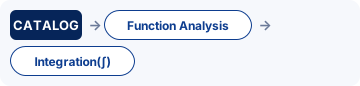
- CATALOG → Function Analysis → Integration(∫). Type the function and the limits 0 and 2, EXE.
- CATALOG → Function Analysis → Derivative(d/dx). Type the function and x = 1, EXE.
- For trig functions set radians first: SETTINGS → Calc Settings → Angle Unit → Radian.
Numerical derivative and integral on the Casio fx-CG50
Written for OS 3.80 (menus unchanged from OS 3.60 onwards as far as we can tell). Casio fx-CG50: graphic (GDC).
Watch the key presses on the fx-CG509 presses, one at a time
The walkthrough needs JavaScript. The same key presses are in the numbered steps below.
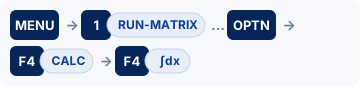
- MENU 1 (RUN-MATRIX).
- Derivative at a point: OPTN F4 (CALC) F2 (d/dx). In the template type X² e^(−X) (e^ is SHIFT ln), move to the box after x = and type 1, then EXE.
- Definite integral: OPTN F4 (CALC) F4 (∫dx). Type the function, then the lower limit 0 and upper limit 2 in the boxes, then EXE.
- Area from the graph instead: in GRAPH, draw Y1, then SHIFT F5 (G-SOLVE) F6 (▷) → ∫dx, move to the lower limit and EXE, then the upper limit and EXE: the region is shaded and its value shown.
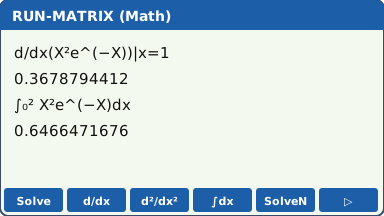
- In linear input mode the syntax is d/dx(f(X), 1) and ∫(f(X), 0, 2).
- For the distance travelled use ∫|v(t)|dt: Abs is in OPTN → NUMERIC → Abs (press F6 (▷) in the OPTN menu to reach NUMERIC).
- Area between two curves: ∫(Y1 − Y2) between the intersections, with Abs if the curves cross inside the interval. Y1 is typed with VARS F4 (GRAPH) F1 (Y) 1.
Numerical derivative and integral on the TI-84 Plus CE
Written for OS 5.8.x. TI-84 Plus CE: graphic (GDC); also the TI-84 Plus CE Python / CE-T Python Edition.

Watch the key presses on the TI-84 Plus CE7 presses, one at a time
The walkthrough needs JavaScript. The same key presses are in the numbered steps below.
- Derivative: math 8: nDeriv( (on the CE with MathPrint it is a d/dx template). Type X² e^(−X) (e^ is 2nd ln), put X in the variable box and 1 as the value, enter.
- Integral: math 9: fnInt( (the ∫ template). Lower limit 0, upper limit 2, the function, and X after d. enter.
- From the graph: 2nd trace (CALC) 6: dy/dx at a point, or 7: ∫f(x)dx with lower and upper limits: the area is shaded.
- Using Y1 in the template (alpha trace (F4 shortcut) → Y1) saves retyping the function.
- abs( is math → NUM → 1: abs(.
Numerical derivative and integral on the TI-Nspire CX II
Written for OS 6.x. TI-Nspire CX II: graphic (GDC), non-CAS (the CX II CAS is a different model: check the exam rules before using one).

- Calculator page: menu → Calculus → Numerical Derivative at a Point. Choose the variable x and the value 1, OK, then type x²·e^(−x) in the template and enter.
- Integral: menu → Calculus → Numerical Integral, then fill in 0, 2 and x²·e^(−x) and enter. (The templates key templates also has the ∫ and d/dx templates.)
- From the graph: menu → Analyze Graph → Integral (click the lower and upper bounds) or → dy/dx.
- Defining f1(x) on a Graphs page lets you type f1(x) in the Calculator page instead of the whole function.
For teachers: Show on the board Print a keystroke card Teaching GDC skills
Worked example
f(x) = x²e−x. Find (a) f′(1), (b) ∫₀² f(x) dx. (c) Why does ∫₀^π sin x dx give 0.0861 on some calculators?
Answers (checked with Python)
(a) f′(1) = 0.367879 (exactly e−1). (b) 0.646647 (exactly 2 − 10e−2). (c) The calculator is in degrees: the answer in radians is 2; in degree mode it integrates sin of x degrees and gives 0.0861.
Now try it on an exam-style question
Use the keystrokes above on A Level-style integration questions. Free to try, no sign-up.
Common calculator mistakes
- Degree mode: any trig integral or derivative is wrong unless the calculator is in radians. ∫₀^π sin x dx should be 2, not 0.0861.
- Area vs integral: if the curve goes below the x-axis, the integral subtracts that part. For an area use |f(x)| (Abs) or split the interval at the root.
- Wrong variable: on the fx-CG50 and TI-84 the variable in the function must be X; on the TI-Nspire it must match the variable in d/dx or dx.
- Rounding the limits: if a limit is an intersection you found earlier, use the stored full value, not 3 s.f.
- "Use calculus" or "show that" questions need the working: a calculator value alone scores little.
If you get an error
fx-991EX: Math ERROR, Syntax ERROR, Time Out
Math ERROR A result, or a value you typed, is outside the range the calculator can handle, or you asked for something mathematically impossible, such as dividing by zero. Check: A function that is undefined somewhere between the limits, such as ln x or 1/x at x = 0, or a limit typed into the wrong box. Fix: Casio's advice: check the values you typed, use fewer digits and try again. If a variable is the input to a function, make sure its value is one the function accepts.
Syntax ERROR There is a problem with the format of the calculation. In Matrix and Vector calculations it also appears when the sizes do not suit the operation. Check: A missing or extra bracket, or two operation signs in a row. With matrices or vectors: adding a 2 × 2 to a 3 × 3, or a product whose sizes do not match. Fix: Casio's advice: make the corrections. For matrices and vectors, check the size you set for each one.
Time Out A derivative or integral calculation ended without meeting its ending condition. Check: An integral of a function that changes very quickly, or over a very wide interval. Fix: Casio's advice: increase the tol (tolerance) value. The answer is then less precise.
fx-991CW: Math ERROR, Syntax ERROR
Math ERROR A result, or a value you typed, is outside the range the calculator can handle, or you asked for something mathematically impossible, such as dividing by zero. Check: A function that is undefined somewhere between the limits, such as ln x or 1/x at x = 0, or a limit typed into the wrong box. Fix: Casio's advice: check the values you typed, use fewer digits and try again. If a variable is the input to a function, make sure its value is one the function accepts.
Syntax ERROR There is a problem with the format of the calculation: it is typed in a form the calculator cannot read. Check: A missing or extra bracket, two operation signs in a row, or a function with nothing after it. Fix: Casio's advice: make the corrections and try again.
fx-CG50: Ma ERROR
Ma ERROR Casio's Math ERROR: the result is outside the allowable calculation range, or you are trying to do an illegal mathematical operation, such as dividing by zero. Check: A function that is undefined somewhere between the limits, such as ln x or 1/x at x = 0, or a limit typed into the wrong box. Fix: Casio's advice: check your input values and change them so the result is within the allowable range.
TI-84 Plus CE: ERR:DOMAIN, ERR:SYNTAX
ERR:DOMAIN A value given to a function or instruction is outside the values it accepts. In a regression, TI says it means the data do not suit the model you chose. Check: A function that is undefined somewhere between the limits, such as ln x or 1/x at x = 0, or a limit typed into the wrong box. Fix: Change the value that is out of range, or choose a model that suits the data.
ERR:SYNTAX The command contains a syntax error: a misplaced function, argument, bracket or comma. Check: TI points out that subtract − and negative (−) are different keys, and using the wrong one causes this error. Then check the brackets and commas. Fix: Find the misplaced function, argument, bracket or comma and correct it.
TI-Nspire CX II: Domain error, Syntax error
Domain error An argument must be in a specified domain, and this one is not (TI's example: rand(0)). Check: A function that is undefined somewhere between the limits, such as ln x or 1/x at x = 0, or a limit typed into the wrong box. Fix: Change the value that is out of range.
Syntax error The syntax checker found a problem. Check: A missing bracket or comma. Fix: Correct the expression and try again.
Do it in Desmos
Not in the exam. Desmos is not allowed in A Level exams. Use it to learn, to check a calculator answer, and to see what a function or data set looks like.
- Define f(x) = x^2 e^(−x).
- Type f′(1) (use the apostrophe for the dash): Desmos evaluates the derivative at 1.
- Type the integral with the int template: ∫ from 0 to 2 of f(x) dx. To shade the area, add the inequality 0 ≤ y ≤ f(x) {0 ≤ x ≤ 2}.
Open desmos.com/calculator (free, in any browser) and type:
f(x)=x^{2}e^{-x}f'(1)int_{0}^{2}f(x)dx0≤ y≤ f(x){0≤ x≤2}
Questions
Can I use a calculator for numerical derivative and integral in the exam?
Yes. Every UK A Level Maths paper (Edexcel 9MA0, AQA 7357, OCR H240) and every Edexcel IAL unit, P1 included, allows a calculator that has no CAS and no wireless link. The fx-CG50 qualifies.
What are the fx-991EX keystrokes for numerical derivative and integral?
MENU 1 (Calculate). Then Integral: press ∫▭ (the integral key), type X² e^(−X) (e^ is SHIFT ln), then the limits 0 and 2 with the arrow keys, =. Then Derivative: SHIFT ∫▭ (d/dx). Type the function, move to x = and type 1, =. The full steps and the other calculators are in the keystrokes section above.
Does this work on other calculators?
Yes. This page has keystrokes for the Casio fx-991EX ClassWiz, Casio fx-991CW ClassWiz, Casio fx-CG50, TI-84 Plus CE and TI-Nspire CX II. The worked example has the same answers on every model, so use it to check.
What should I write as working?
Write the maths, not the key presses: say what you are finding in normal notation (the equation, the probability statement or the integral), then the calculator's answer to the accuracy the question asks for (often 3 significant figures). Keep full accuracy in later parts.
More calculator skills
Sources
- Casio fx-991EX / fx-570EX Quick Start Guides : Casio fx-991EX ClassWiz, the fixed ROM (these models take no OS updates).
- Casio fx-991CW / fx-570CW User's Guide : Casio fx-991CW ClassWiz, the fixed ROM (these models take no OS updates).
- Casio fx-CG50 Software User's Guide, OS 3.70 (PDF) : Casio fx-CG50, OS 3.80 (menus unchanged from OS 3.60 onwards as far as we can tell).
- TI-84 Plus CE guidebook (Texas Instruments) : TI-84 Plus CE, OS 5.8.x.
- TI-Nspire CX II guidebooks (Texas Instruments) : TI-Nspire CX II, OS 6.x.
- Desmos Help Center for the Desmos functions.
Menu names are taken from each manufacturer's manual for the models shown. Menus can move slightly between OS updates: if a screen looks different on yours, the manual for your version is the reference, and please tell us so we can update this page. A calculator with no tab here has no checked steps for this skill yet. Worked-example answers were recomputed independently in Python.